
Exterior paint visualizer.
Explore exterior colors on a photo of your home. Mark a wall, protect windows and trim, then compare your favorites.
Exterior color palette
12 colors2 wall areas · 3 protected areas
Free and private. No account needed.
Digital colors are starting points, not paint-brand formulas. Protect windows and trim before comparing colors, and test physical samples before painting.
Find a new direction for your exterior.
Start with warm white, soft sage, dusty blue or charcoal. Select a color to compare it with the original above.
Original AI-generated example photo with local color previews. These are visual studies, not completed renovations or exact product matches.
See how exterior colors work on your own home.
An exterior paint visualizer applies digital colors to selected areas of a house photo. It helps you compare siding and wall colors against the roof, windows and surrounding materials. It is a planning aid, not an exact paint formula or a substitute for a physical sample.
One photo. Three easy steps.
Bring your house into the picture
Upload a clear exterior photo, or start with the selected siding in our example.
Choose walls and keep the details
Add four-corner wall areas. Protect windows or trim, then choose a palette color or custom shade.
Compare before buying paint
Slide between the original and preview. Download your favorites and check physical samples outdoors.
A clearer picture of your next change.
Try colors on your actual exterior
See a shade beside the roof, masonry and landscaping you will keep.
Keep the original light and texture
The local color treatment preserves light and shade as a starting point for comparison.
Control the area that changes
Add multiple wall areas and protect windows, doors or trim you want to leave alone.
Narrow down a practical shortlist
Compare warm whites, earthy neutrals, blues and greens before ordering paint samples.
Questions about exterior paint previews
From choosing an area to checking a real paint sample.
How does the exterior paint visualizer work?
Upload a house photo, select a wall area using four corners, then pick a color. Add other wall areas as needed. The preview changes selected pixels locally while retaining their light and shade.
Does it automatically detect all the walls?
No. You mark wall areas so you control what changes. Start with one clear area, then add more. Use Protect windows or trim to preserve details within a painted area.
Can I try my own exterior paint color?
Yes. Use any of the 12 starting colors, or choose a custom shade with the color picker. These colors are digital references and are not certified matches to paint-brand formulas.
Can I change siding and trim to different colors?
This version applies one selected color to all painted areas. Protect trim to keep its original color. To compare a different trim treatment, save the current preview and work on a separate photo or use the creative studio.
Will the preview match real paint exactly?
No. Original lighting, existing surface color, camera settings and your display all influence the result. Check physical samples on the actual exterior at different times of day before buying paint.
Do I need an account, and can I download the result?
No account is needed. The tool runs in your browser and supports PNG previews and before-and-after downloads without generation credits. Your photo is not uploaded by the color tool.
Start with one good idea.
Useful ways to explore your home’s next look.
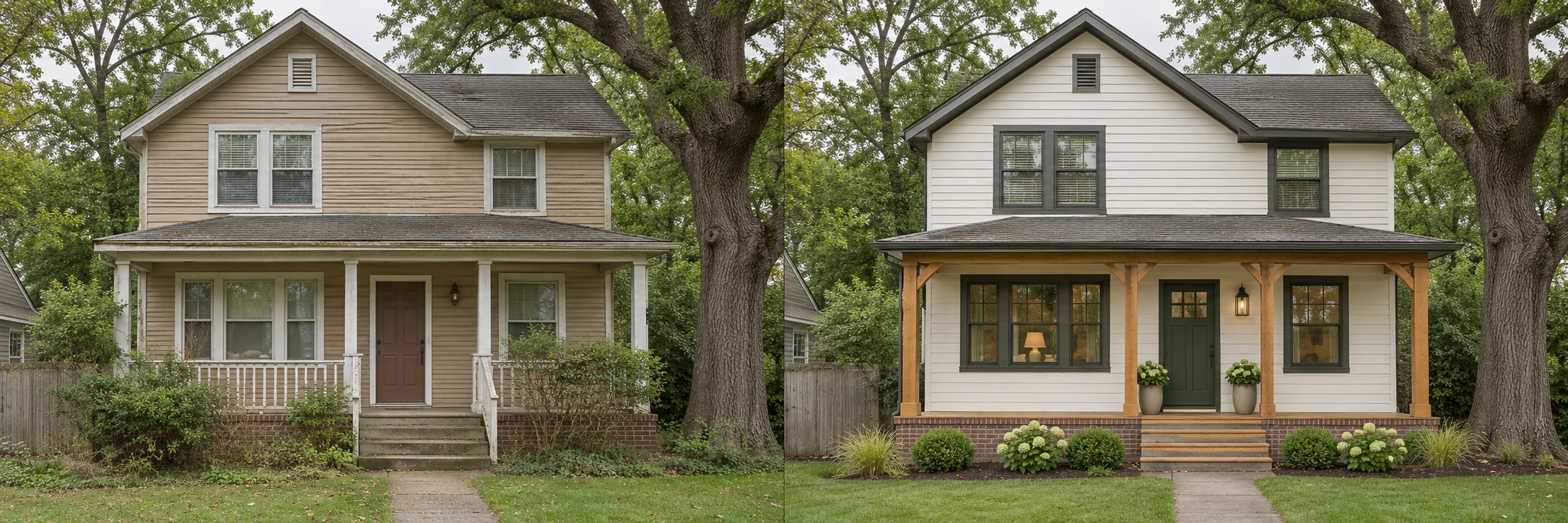
Home exterior design
Explore a new direction for the whole house.
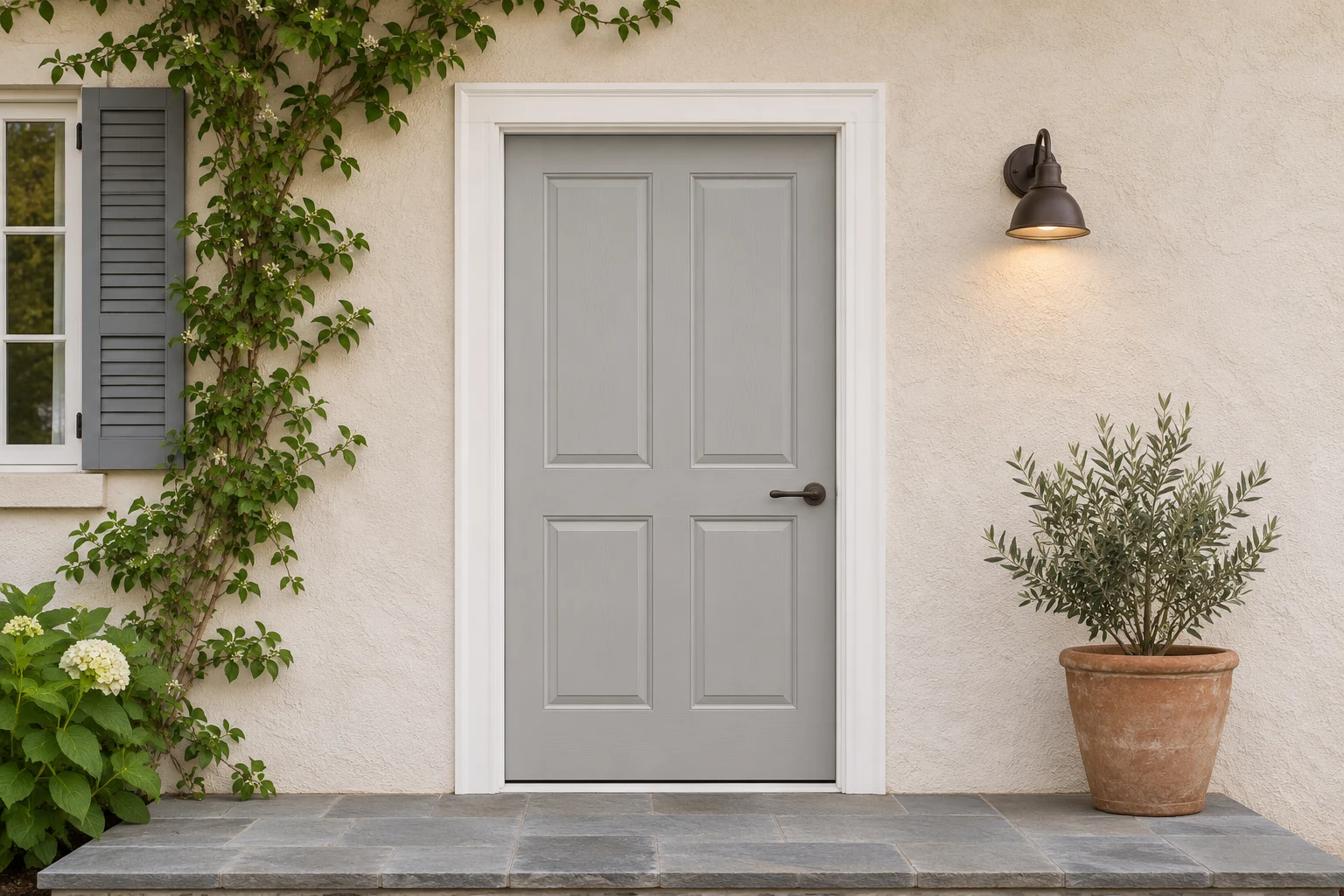
Front door colors
Try 24 colors on the entrance you already have.
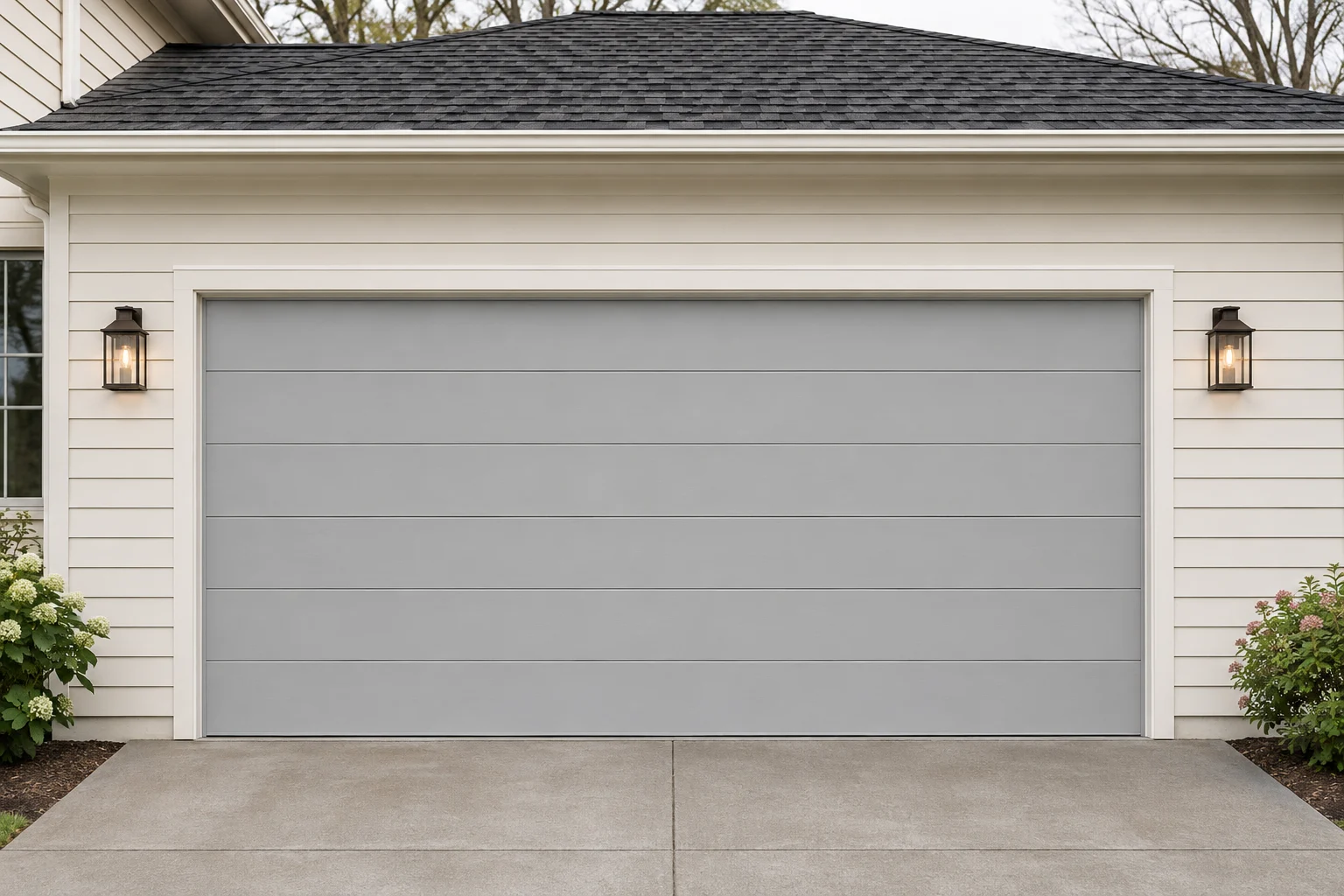
Garage door styles
Compare six panel, slat and window styles.
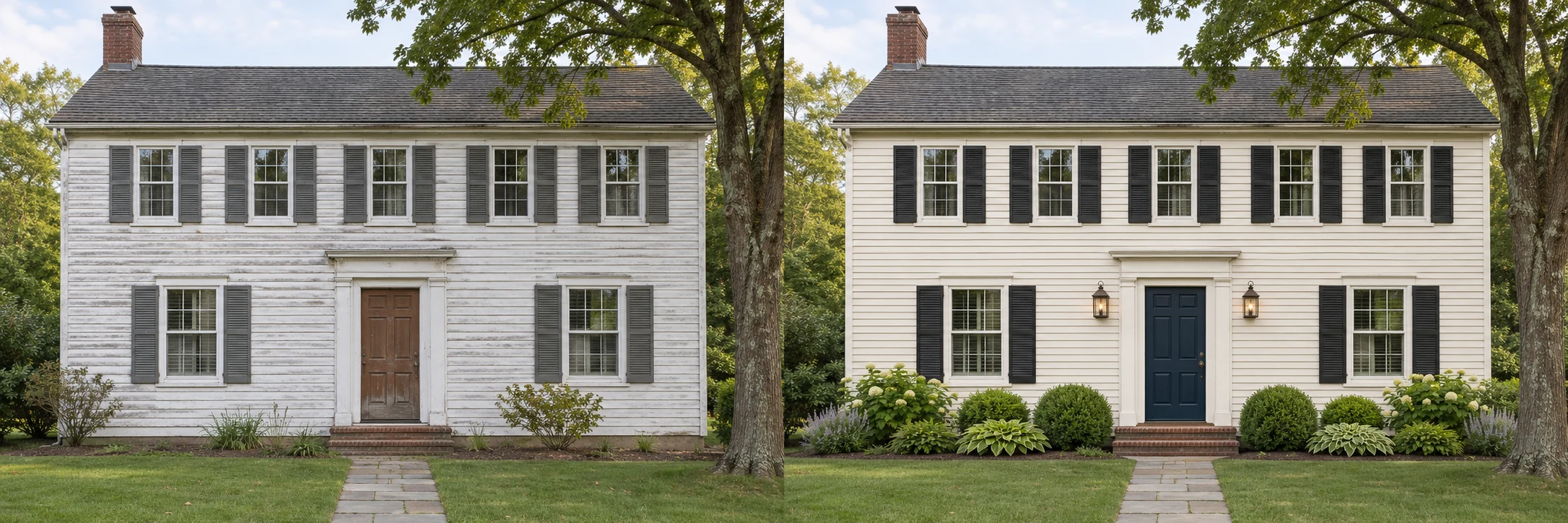
Creative studio
Generate a design, refine it and keep creating.
There’s another side to your home.
Take a look at what it could be.